Encountering "device memory low Roblox" can be a major buzzkill when all you want is to unwind with friends in your favorite game. This frustrating message often pops up at the worst times, leading to lag, crashes, and ultimately, a disrupted gaming session. For busy gamers balancing work, family, and life, precious gaming time is valuable, and performance issues are simply not an option. This comprehensive guide is designed to help you understand why this memory warning appears and, more importantly, how to effectively resolve it. We'll dive into practical, actionable steps for both PC and mobile users, ensuring you can optimize your device and get back to enjoying Roblox's vibrant worlds without interruption. Whether you're a seasoned player or new to the platform, you'll find easy-to-follow tips and tricks to boost your game's performance, manage system resources, and maintain a smooth, enjoyable Roblox experience. Forget the frustration and get ready to elevate your gameplay with our expert advice.
Why does Roblox keep saying my device memory is low?
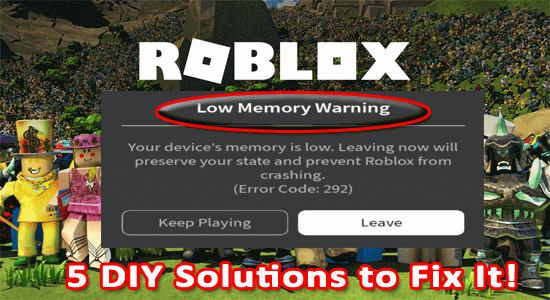
Roblox displays a "device memory low" warning when your computer or mobile device's Random Access Memory (RAM) is nearly exhausted. This happens because Roblox, especially complex games within it, requires significant memory to run, and if other applications or system processes are also consuming large amounts of RAM, there simply isn't enough left for Roblox to operate smoothly. It's a common issue for devices with lower RAM, or when too many programs are running simultaneously, leading to performance bottlenecks.
How do I optimize my PC for Roblox to prevent low memory warnings?
To optimize your PC for Roblox and prevent low memory warnings, start by closing all unnecessary background applications, including browser tabs and chat apps. Adjust Roblox's in-game graphics settings to manual and lower the quality. Regularly clear your system's temporary files and Roblox's cache. Ensure your operating system and graphics drivers are up-to-date. If issues persist, consider increasing your RAM, as 8GB or more is ideal for a smooth Roblox experience in 2026.
Can browser tabs and other programs affect Roblox's memory usage?
Absolutely, browser tabs and other running programs significantly affect Roblox's memory usage. Each open tab in your web browser, especially those with media content, and every background application like Discord, Spotify, or email clients, consumes a portion of your device's RAM. When these accumulate, they leave less memory available for Roblox, leading to the "device memory low" warning and performance issues. Always close non-essential applications before playing Roblox for optimal performance.
What are the tell-tale signs of a genuine "device memory low Roblox" issue versus other performance problems?
The clearest sign of a genuine "device memory low Roblox" issue is the specific warning message itself. Beyond that, you'll notice severe lag, stuttering, texture pop-in, extremely slow loading times, or even game crashes that specifically happen when multiple applications are open or after extended gameplay. Other performance issues might manifest as consistent low frame rates regardless of background apps, which could point to a GPU or CPU bottleneck rather than a direct RAM shortage.
Is it true that clearing my Roblox cache can help with memory?
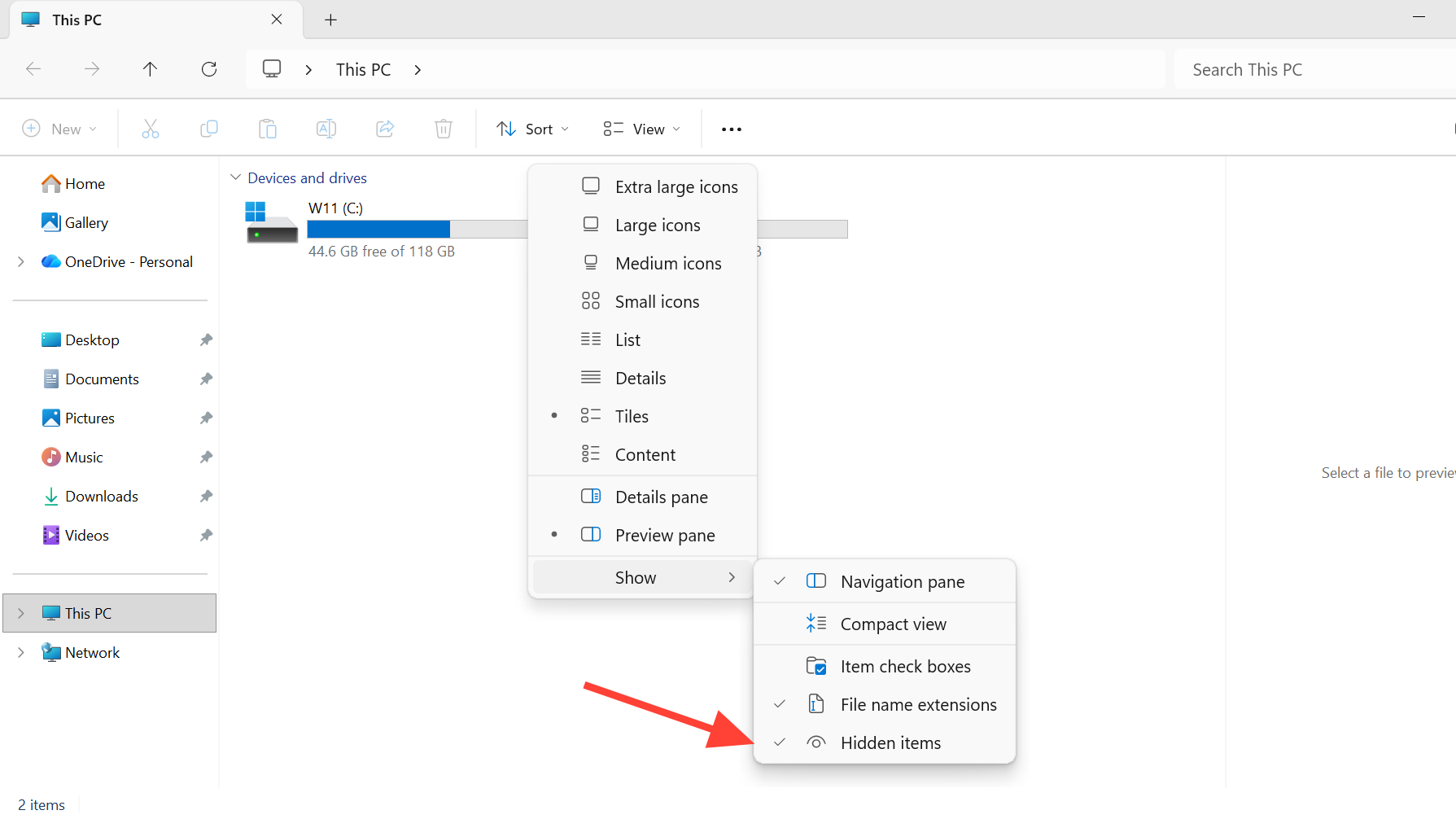
Yes, clearing your Roblox cache can help with memory issues. The cache stores temporary files that Roblox uses for faster loading, but over time, these files can accumulate, become corrupted, or simply take up unnecessary space. Removing them forces Roblox to recreate fresh, efficient temporary files, which can reduce memory consumption and improve overall game performance without deleting any of your actual game progress or account data.
What specific Roblox games are known to be memory-intensive?
Generally, Roblox games with highly detailed graphics, extensive custom assets, complex physics, large player counts, or intricate scripting tend to be memory-intensive. Popular experiences like Adopt Me!, Brookhaven, Royale High, and some simulator games often push device memory limits due to their vast worlds, numerous interactive elements, and constant updates. Games utilizing advanced lighting or custom terrain generation can also be particularly demanding on RAM, leading to "device memory low" warnings on less powerful devices.
How often should I perform memory maintenance on my device for optimal Roblox play?
For optimal Roblox play and to consistently avoid "device memory low" warnings, perform quick memory maintenance (closing background apps, restarting) before each gaming session. A more thorough cleanup, such as clearing Roblox and system caches, and checking for system updates, is recommended weekly or bi-weekly. If you game extensively or use an older device, a daily quick restart and app management routine will yield the best results, ensuring your device is always ready for seamless Roblox fun.
Hey fellow gamers! Ever been deep into an epic Roblox adventure, building a magnificent creation, or just chilling with friends, only for that dreaded "Device Memory Low" message to pop up and grind everything to a halt? We've all been there. For many of us, gaming isn't just a pastime; it's a vital escape, a way to connect, or even a form of stress relief after a long day of work and family responsibilities. When Roblox, a platform loved by millions for its social creativity and diverse game worlds, starts sputtering, it can feel like a real betrayal of our precious unwind time. You're not alone in facing this issue; performance problems are a common pain point for gamers across all platforms.
In 2026, with over 87 percent of US gamers regularly diving into virtual worlds for an average of 10 or more hours a week, and mobile gaming continuing its dominance, smooth performance is non-negotiable. We want to enjoy our games, build skills, and socialize without technical headaches. This guide is your ultimate resource for understanding and fixing the "device memory low Roblox" warning, transforming your frustrating moments into seamless gameplay. We're going to break down the causes, provide clear, actionable solutions, and help you optimize your setup so you can focus on the fun. Let's get your Roblox experience running like a dream!
What Exactly Does "Device Memory Low Roblox" Mean and Why Does It Happen?
When you see the "device memory low Roblox" message, it means your computer or mobile device doesn't have enough available RAM (Random Access Memory) to run Roblox efficiently alongside other processes. RAM is your system's short-term memory, where active programs and data are stored for quick access. Roblox, especially modern, complex games within the platform, can be quite memory-intensive. If your RAM gets full, your system struggles to keep up, leading to lag, freezing, or even crashes. Common culprits include too many background applications, outdated hardware, unoptimized Roblox settings, or accumulated temporary files that hog resources.
How Can I Quickly Free Up Memory on My Device for Roblox?
The fastest way to combat a "device memory low Roblox" warning is to free up immediate RAM. First, close any unnecessary programs running in the background. This includes web browsers with multiple tabs, video streaming services, other games, and productivity software. For PC users, open Task Manager (Ctrl+Shift+Esc), go to the Processes tab, and end tasks for applications consuming high memory that you don't need. Mobile users should close apps from their recent apps switcher. Additionally, consider restarting your device. A fresh boot clears temporary files and resets RAM, often providing a significant boost.
What Are the Optimal Roblox Graphic Settings to Reduce Memory Usage?
Adjusting Roblox's in-game graphics settings is crucial for reducing memory load. Start by opening Roblox, going into the game, and pressing the Escape key to access the menu. Navigate to "Settings" and find the "Graphics Mode" option. Change it from "Automatic" to "Manual." Then, reduce the "Graphics Quality" slider. Lower settings mean fewer detailed textures, simpler lighting, and less complex rendering, all of which demand less from your RAM and GPU. Experiment with these settings to find a balance between visual quality and smooth performance. Often, a slight reduction makes a huge difference in avoiding "device memory low Roblox" pop-ups.
Are There Specific System Requirements I Should Know to Avoid Roblox Memory Issues?
While Roblox is known for its accessibility, meeting certain system requirements is key to avoiding "device memory low Roblox" issues. For PC, Roblox generally recommends at least 1 GB of RAM, but realistically, 4 GB is a comfortable minimum, and 8 GB or more provides the best experience, especially for modern games. A decent processor (Intel Core i3 or equivalent from 2009 onwards) and a graphics card with DirectX 10 support are also important. For mobile, a device released in the last 3-5 years with at least 2 GB of RAM and a relatively current operating system (Android 5.0 or iOS 9.0 and above) should suffice. Always check the official Roblox support pages for the most up-to-date recommendations, as game complexity evolves.
How Do Background Applications Impact Roblox Performance and Memory?
Background applications are silent memory thieves that severely impact Roblox performance and often trigger the "device memory low Roblox" warning. Every open tab in your web browser, every social media app, every voice chat program like Discord, and even system utilities consume a portion of your RAM. When these accumulate, they leave less memory available for Roblox. Imagine trying to run a sprint while carrying a backpack full of bricks – that's what your device does when too many background apps are active. Before launching Roblox, make it a habit to close all non-essential programs. This single step can often resolve memory issues instantly, giving Roblox the resources it needs to run smoothly and letting you enjoy your gaming time without frustrating interruptions.
When Should I Consider Upgrading My Hardware to Fix Roblox Memory Problems?
If you've tried all software-based solutions and still regularly encounter "device memory low Roblox" warnings, it might be time to consider a hardware upgrade. This is particularly true for gamers using older PCs or mobile devices. The most common and impactful upgrade for memory issues is increasing your RAM. Going from 4 GB to 8 GB, or 8 GB to 16 GB, can dramatically improve overall system responsiveness and Roblox performance. Consider a solid-state drive (SSD) as well, as it can speed up game loading times and system operations, although it doesn't directly address RAM. For mobile users, a newer device with more RAM and a faster processor is often the only upgrade path. While budget is always a factor, a strategic upgrade can significantly enhance your long-term gaming enjoyment and prevent future memory headaches, making your valuable leisure time more rewarding.
What Are Common Myths About Fixing "Device Memory Low Roblox"?
There are several myths surrounding "device memory low Roblox" fixes that can waste your time or even harm your system. One common misconception is that downloading "RAM cleaner" apps from unverified sources will miraculously solve everything. Many of these apps are ineffective bloatware or, worse, contain malware. Stick to trusted system tools. Another myth suggests that simply reinstalling Roblox will always fix memory issues; while it can help with corrupted files, it won't magically increase your available RAM. Similarly, some believe that running multiple antivirus scans simultaneously will free up memory, but this often consumes more resources than it saves. Focus on proven methods like managing background processes, adjusting settings, and proper hardware evaluation for real, lasting solutions.
How Can Mobile Gamers Specifically Tackle Roblox Memory Warnings?
Mobile gamers face unique challenges with "device memory low Roblox" warnings due to less flexible hardware. First, ensure your device's operating system is up-to-date, as updates often include performance enhancements. Regularly clear the app cache for Roblox and other frequently used apps in your device's settings – this removes temporary files without deleting important game data. Uninstall any apps you don't use, as they consume storage and can run background processes. Keep your device's internal storage from getting completely full; aim for at least 15-20% free space. Finally, restart your phone or tablet daily to refresh its RAM and close all lingering background processes, providing a clean slate for your Roblox sessions. These steps are crucial for maintaining smooth mobile gameplay.
Can a Reinstall or Game File Verification Help with Roblox Memory Problems?
Yes, in certain scenarios, a reinstall or game file verification can indeed help with "device memory low Roblox" issues, particularly if the problem stems from corrupted or incomplete game files. Over time, game files can become fragmented or damaged, leading to inefficiencies that consume more memory than necessary. For PC users, verifying game files through the Roblox Player launcher can repair any discrepancies without a full reinstall. If that doesn't work, a clean reinstall of Roblox (uninstalling the current version and then downloading a fresh copy from the official website) ensures you have the most optimized and stable version of the game. While this won't increase your device's total RAM, it can significantly improve how efficiently Roblox utilizes the memory it has available, often resolving subtle performance hitches.
What Advanced Tips Can Optimize My System for Consistent Roblox Performance?
For gamers seeking consistent Roblox performance and to permanently avoid "device memory low Roblox" warnings, delve into system-level optimizations. On Windows, adjust your virtual memory (page file) settings; while not a direct RAM replacement, a properly managed page file can prevent system crashes when RAM runs low. Ensure your graphics drivers are always up-to-date; outdated drivers can cause inefficiencies and memory leaks. Consider using a utility like CCleaner (from a reputable source) to periodically clean out junk files and registry errors, freeing up disk space and potentially improving system responsiveness. Finally, regularly defragment your hard drive if you're still on an HDD (SSDs don't need defragmentation), as this organizes data for faster access. These advanced steps, combined with earlier tips, create a robust environment for stable, high-performance Roblox gaming.
Phew! That was a lot, but hopefully, you now feel empowered to tackle those pesky "device memory low Roblox" warnings head-on. Remember, maintaining a smooth gaming experience is an ongoing process, not a one-time fix. Regularly clearing temporary files, managing your background applications, and keeping an eye on your hardware are key to uninterrupted fun. It's all about making the most of your valuable leisure time and enjoying the vibrant worlds Roblox offers without the frustration of technical hiccups. With these strategies in your arsenal, you'll be building, exploring, and socializing without a hitch.
What's your biggest gaming challenge when balancing life and play? Comment below and share your go-to tips for keeping your system running smoothly!
FAQ Section
Q: Will clearing my Roblox cache delete my game progress?
A: No, clearing your Roblox cache only removes temporary files, not your saved game data or account information, which is linked to your Roblox profile online.
Q: Is it safe to use third-party tools to clean my device's memory?
A: It depends on the tool. Stick to reputable system utilities like those built into your OS (Disk Cleanup on Windows, Storage Management on macOS) or well-known, trusted software. Be cautious of unknown "RAM booster" apps, as they can sometimes contain malware.
Q: How often should I perform these memory optimization steps?
A: For optimal performance, aim for a quick cleanup (closing background apps, restarting) before each major gaming session. A deeper clean (clearing cache, checking drivers) can be done weekly or monthly, depending on your usage and how often you encounter issues.
Q: Does having a faster internet connection help with "device memory low Roblox"?
A: While a faster internet connection improves network latency and download speeds, it doesn't directly address "device memory low Roblox." This error relates to your device's internal RAM, not your internet bandwidth. However, a stable connection prevents other forms of lag.
Clear Roblox cache, lower graphics settings, close background applications, check system requirements, upgrade RAM if necessary, optimize game settings, manage device storage, restart device regularly, monitor resource usage, use a wired connection.
35


IOS App Low Memory Warning Error Code 292 Roblox Support. How To Fix Low Memory Warning Error Code 292 On Roblox Fix Low Memory On Roblox Step 9 . Increase In Memory Causing Crashing On Mobile Devices Engine Bugs 2 690x262 . FIXED ROBLOX LOW MEMORY WARNING IOS How To Fix Low Memory On Roblox . Why Is It Giving This Low Memory Warning R AdoptMeRBX



How To Reduce Roblox Memory Usage . Available Memory Low Memory Warning Roblox . How To Reduce Roblox Memory Usage . How To Fix Low Memory Warning Error Code 292 On Roblox V4 460px Fix Low Memory On Roblox Step 2 . 6 Fixes For Roblox Low Memory Warning Error Code 292 On IPhone And Ways To Fix Roblox Low Memory Warning Error Code 292 On IPhone And IPad


As A Roblox Developer It S Currently Impossible To Hit The 200 00 MB 2 690x318 . How To Fix Low Memory On Roblox Mobile 2024 FULL GUIDE YouTube . Every Time Your Character Dies It Leaks Memory Up To 500 MB Probably . How To Fix Low Memory Warning Error Code 292 On Roblox V4 460px Fix Low Memory On Roblox Step 5 . Memory Simulation More Device Testing Features


How To Fix Roblox Memory Dump Error Memory Dump Error . Every Time Your Character Dies It Leaks Memory Up To 500 MB Probably . Roblox Mobile Device Low Memory R RobloxHelp Roblox Mobile Device Low Memory V0 . How To Fix Low Memory Warning Error Code 292 On Roblox V4 460px Fix Low Memory On Roblox Step 7 . How To Stop Roblox S Unexpected Error Memory Dump Crash On Windows Image 3233 1



How To Fix Low Memory Warning Error Code 292 On Roblox V4 460px Fix Low Memory On Roblox Step 1 . How To Fix Low Memory Warning Error Code 292 On Roblox V4 460px Fix Low Memory On Roblox Step 3 . How To Fix Low Memory On Roblox Monitors Hype Roblox . Extremely High RAM Usage Over 1 GB Scripting Support Developer . Huge Untracked Memory On Different Devices Scripting Support




What Does Low Memory Mean On Roblox Roblox Low Memory Fix 1024x683 . Memory Simulation More Device Testing Features . Why Is Roblox Not Working June 2026 24 Fixes That Actually Work Why Is Roblox Not Working 2025 24 Fixes That Actually Work . How To Fix Low Memory Warning Error Code 292 On Roblox V4 460px Fix Low Memory On Roblox Step 4 . Roblox Device Memory Low Iphone Shorts YouTube Maxres2




How To Fix The Roblox Low Memory Warning On Your IPhone Person Playing Roblox On An Iphone . How To Fix Roblox Mobile Device Memory Low Final Solution YouTube . Roblox Running Slow Lets Fix Low Memory How To Fix Roblox Low Memory Warning 1024x576 . What Does Device Memory Low Mean On Roblox Fix Frustrating Game Issues Image 1 . How To Fix And Solve Roblox Device Memory Low Final Solution YouTube